
# Updates
# Automatic Updates
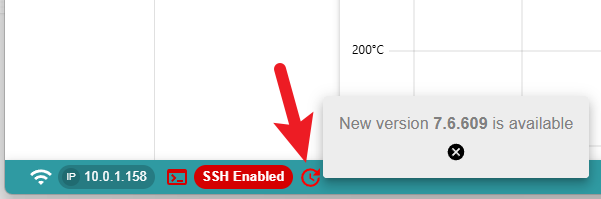
The Aurora has OTA updates when it is connected to the internet. A red logo at the bottom will indicate that the device isn’t running on the latest version.Clicking on it will open a pop-up with the newest version available.
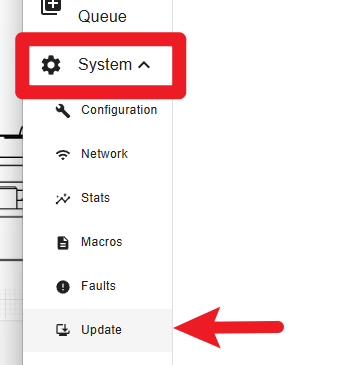
Open the “System” menu and click on “Update”.
If needed, click on “REFRESH” to get the latest update list. Click on “INSTALL” aligned with the version you’d like to update.
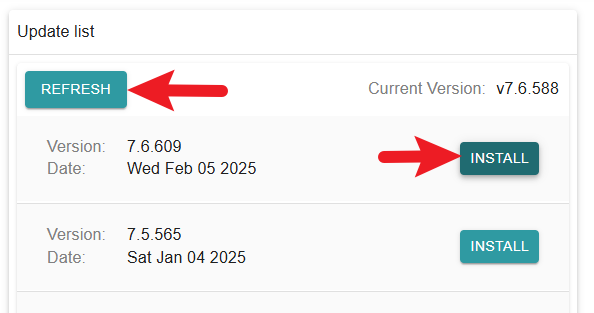
The “INSTALL” button will switch to a throbber.

A download progress will appear.

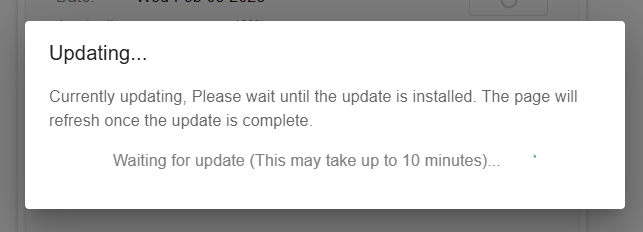
A window will pop-up with details regarding the updating process.
# Manual Updates
Documentation pending: This feature or topic is not yet documented. Details and instructions will be added in a future release.